Verify is Manta’s visual matching workflow. It gives you a way to follow an interior photograph to a candidate listing and examine the visual correspondence between the two.
A room captured in a vertical screenshot can look different from the same room in a wide listing photograph. The angle changes. Furniture moves. A screenshot adds captions and interface elements. A useful result needs to give you something you can inspect through those differences.
From a photograph to a candidate
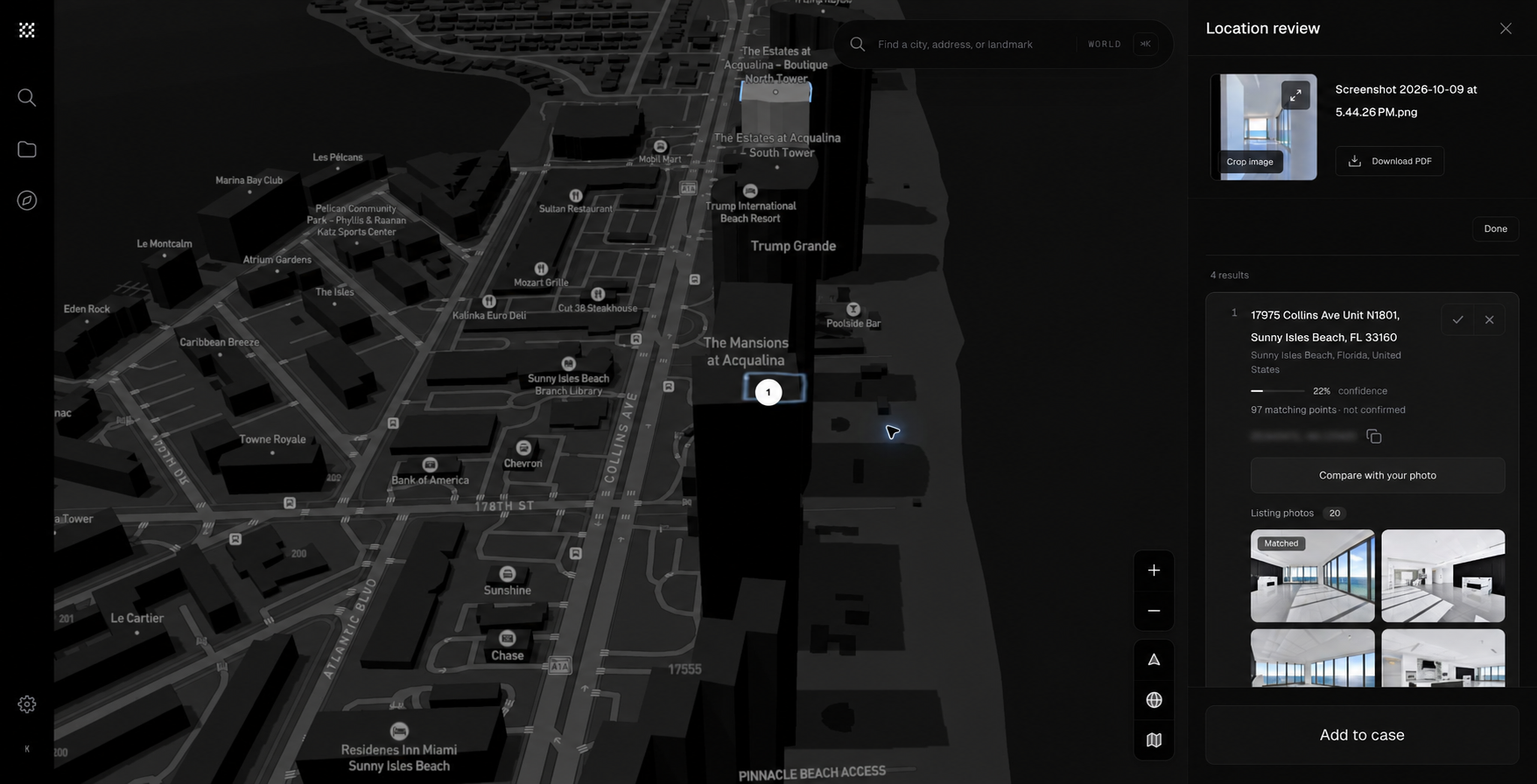
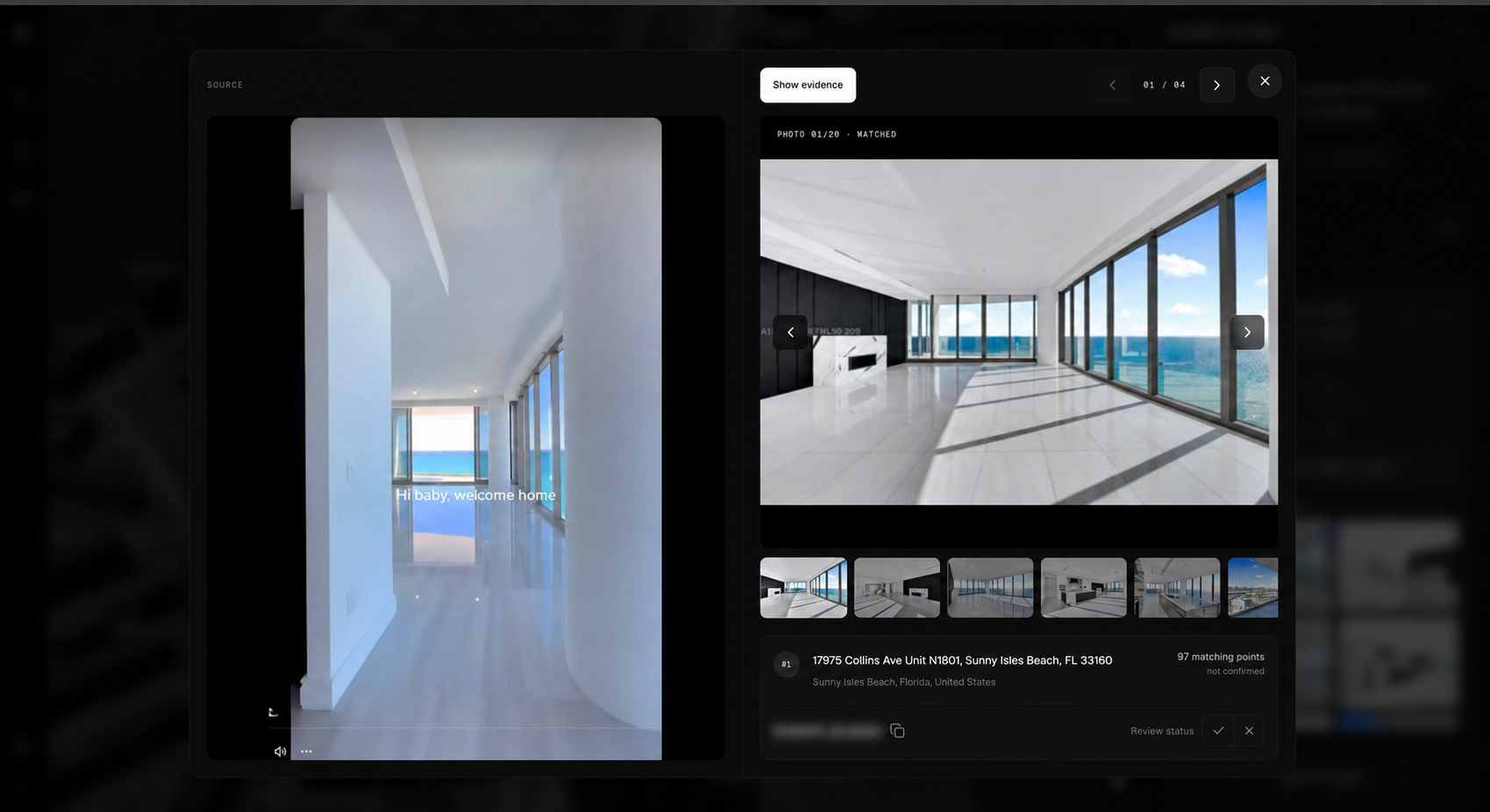
In Workspace, choose Verify and start with your image. The current workflow searches Miami listing imagery and returns candidate results. Open one to see the source photograph beside the listing photo. Where more listing photos are available, you can move through them and compare the room from other angles.
Compare the photographs
Open Compare with your photo to put your source beside the returned listing image. In this example, a vertical interior screenshot is compared with a wide photograph of a room overlooking the ocean. The gallery lets you examine the other listing photos before deciding whether the candidate fits.
Open the evidence
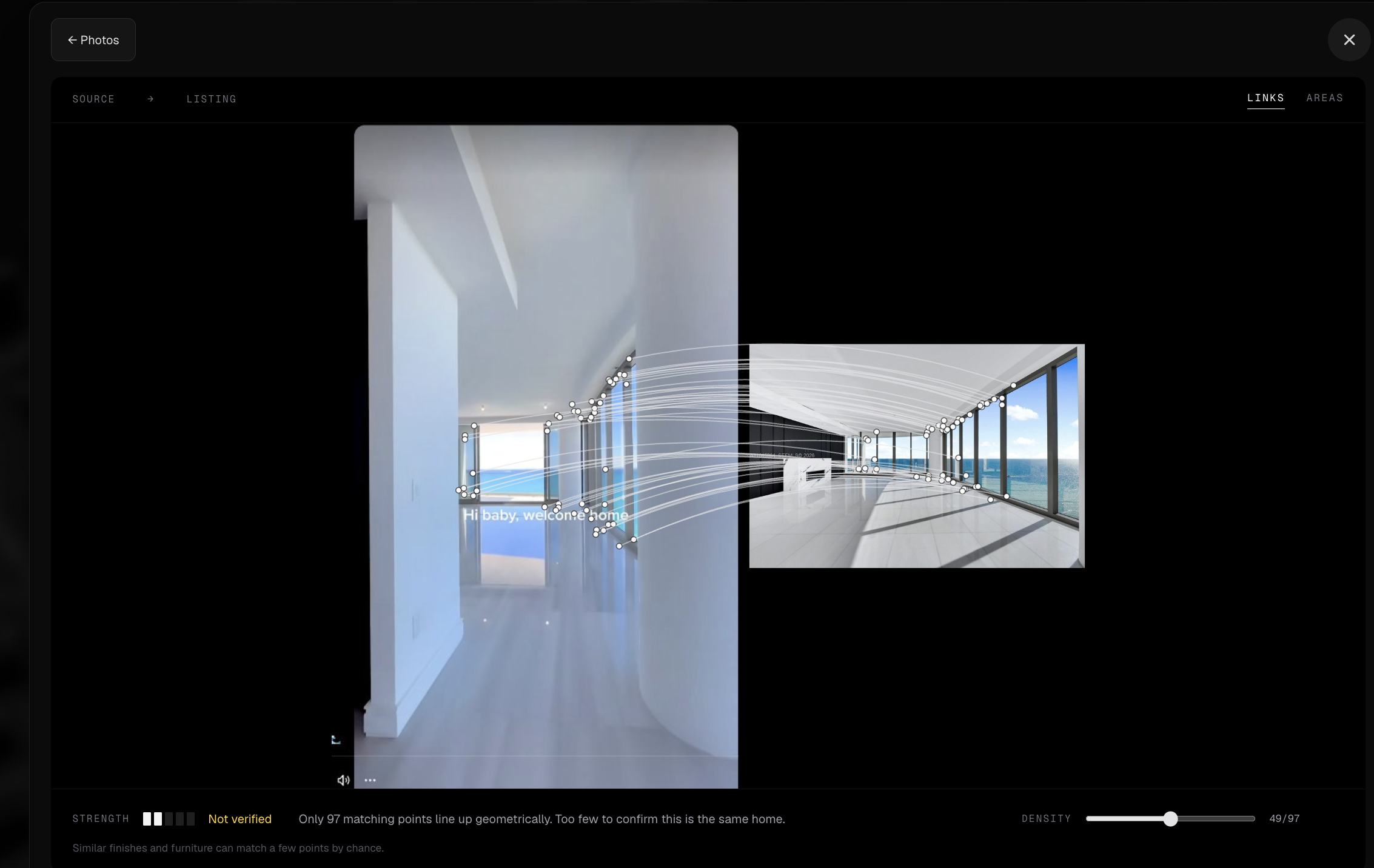
Select Show evidence to inspect the matching points between the images. You can adjust how many links are visible or switch to the areas view to examine groups of correspondences.
In this saved example, the result reports 97 matching points. The view below displays 49 of them so the photographs remain readable. You can examine the window frames, ceiling edges, and room layout rather than rely on the candidate’s rank alone.
The same result is marked Not verified. Matching points can occur on repeated features, and a count does not establish that two photographs show the same property. That status stays visible while you inspect the evidence.
Review the place, not just the score
Work through the candidates. Compare the fixed features, check whether the arrangement makes sense, and examine conflicting details. Workspace lets you mark a result as confirmed or ruled out during your review. A model’s match status and your review decision are separate signals.
Verify can help with checking listing photos, investigating an interior image, or reviewing whether a photograph supports a claimed place. It gives the reviewer a candidate and a comparison to examine. A property match alone does not establish who took the photo, when it was taken, or whether a wider claim is true.
For a property team, that could mean comparing condition photos with available listing imagery. For an investigator, it could mean examining whether an interior photo fits a claimed property. Fixed features such as window positions, ceiling lines, and built-in fixtures give you details to check across different angles. Review the specific room as well as the broader property; similar finishes alone are not enough to establish a match.
Part of Manta
Geo-estimation suggests an area. Ground looks for street or building candidates. Verify brings interior listing comparisons into the same Workspace. You can select the modes you need or run them together and inspect each result separately.
This is part of Oceanir’s work on physical inference: using an observation to understand a place, and keeping the evidence connected to the answer as you review it.
Access and coverage
Verify is being released through Manta’s reviewed Workspace workflow. The listing search shown here covers Miami. Coverage depends on available reference imagery; some photographs will produce weak candidates or an unresolved comparison.
If your organization has Manta Workspace access, open the analysis picker and choose Verify. To discuss a verification workflow with Oceanir, request a Manta evaluation.